COBALT CHORUS

MULTIBAND CHORUS  ·  WHITE RIVER AUDIO
User Guide
Version 0.5.0

Cobalt Chorus splits the sound into four bands and gives each its own chorus, so the lows stay solid and centred while the mids and highs swirl and widen. The dry signal is never split or filtered; only the chorus copy is. It adds no latency.
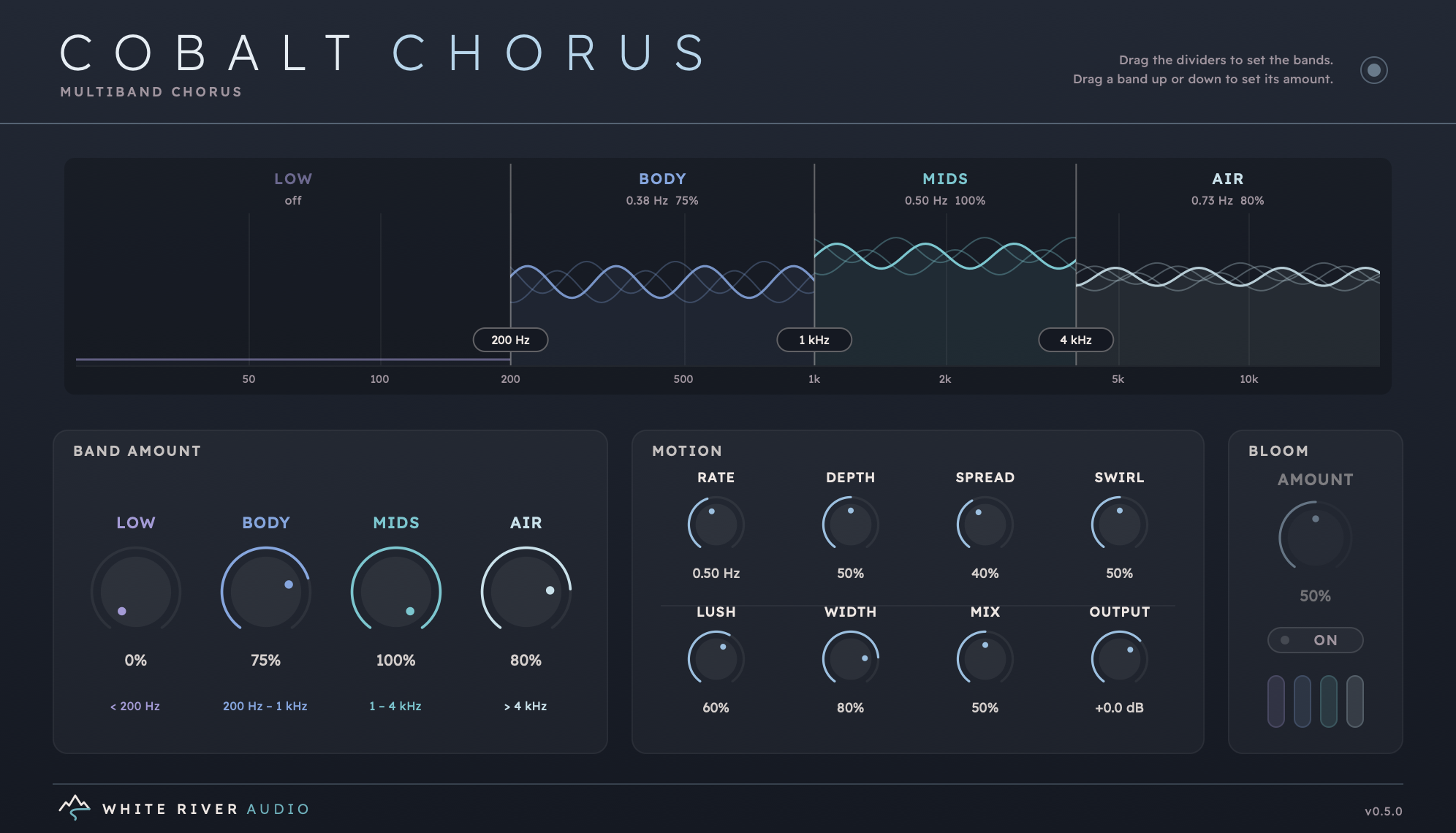
The Cobalt Chorus window 1 2 3 4 5 6 7 8 9 10 11 12 13
DISPLAY 1Band display 2Dividers 13Status light CONTROLS 3Band Amount 4Rate 5Depth 6Spread 7Swirl 8Lush 9Width 10Mix 11Output 12Bloom

Quick start

  1. Insert Cobalt Chorus on a guitar, keys, synth or vocal track, or on a bus.
  2. Set the overall amount with Mix 10. 50% puts the dry signal and the chorus at about equal level.
  3. Shape it per band. Drag a band up or down in the display, or use the Band Amount knobs 3. LOW is off by default so the low end stays solid.
  4. Move the dividers 2 to set where the bands meet. Double-click a divider to reset it.
Cobalt Chorus 0.5.0 · White River Audio1

What you see

1Band display

The four bands, LOW, BODY, MIDS and AIR, each with its rate and amount above it. The waves show each band's chorus moving; their height is the band's amount.

2Dividers

The crossover frequencies between the bands (default 200 Hz, 1 kHz and 4 kHz). Drag to move.

13Status light

Pulses with the chorus movement, brighter with more Mix and more signal.

Bloom meter

Under Bloom, one bar per band shows how far the chorus has swelled back after each note.

The controls

3BAND AMOUNTLOW off, BODY 75%, MIDS 100%, AIR 80% The chorus level of each band. Each band has its own voicing: LOW stays mono and gentle, BODY is slower and deeper, MIDS is the classic chorus, AIR is the fastest and widest. Change it: raise LOW only on sources without important bass; pull MIDS down if the chorus crowds a vocal.
4RATEdefault 0.50 Hz The speed of the movement. Change it: slower for a lush wash, faster for a shimmer.
5DEPTHdefault 50% How far the chorus moves. Change it: lower for subtle thickening; higher for an obvious, seasick chorus.
6SPREADdefault 40% How far the bands' speeds move apart. At 0 every band moves at the same rate. Change it: lower for one unified sweep; higher for a more complex, shifting texture.
7SWIRLdefault 50% Each band's movement lags the one below it, so the motion rolls up the spectrum. Clearest with low Spread.
Cobalt Chorus 0.5.0 · White River Audio2

The controls (continued)

8LUSHdefault 60% The ensemble layer: more voices spread out in time, a fast shimmer and wider panning. At 0 it is a plain chorus. Change it: higher for strings and pads; lower for a cleaner, more focused sound.
9WIDTHdefault 80% Stereo spread. LOW always stays mono, and the two sides keep the same level, so it stays mono-compatible.
10MIXdefault 50% 0% is dry; 50% puts dry and chorus at about equal level; 100% is chorus with the dry signal 3 dB underneath. Up to 50% the dry signal is untouched.
11OUTPUTdefault 0 dB, −24 to +12 dB A fixed level trim.
12BLOOMAmount 50%, off by default Lets the chorus breathe with the playing: each note attack pulls it back, and held notes let it swell in again, each band at its own speed. It reacts to notes starting, not to loudness, so it needs no threshold. Turn it on with the ON button. Change it: use it on plucked or strummed parts so attacks stay clear and sustains bloom.
Cobalt Chorus 0.5.0 · White River Audio3

Good to know

Where it goes

After the track's EQ and compression, before reverb. On a bus it treats the whole group as one.

Keeping the low end

With LOW off, bass and kick-drum energy pass through untouched, so the chorus never smears the low end. Even at Mix 100% the dry signal stays underneath.

Mono compatibility

Width pans voices so the two sides sum to the same level, and LOW is always mono, so the chorus holds up when the mix is folded to mono.

Hover for hints

Every control shows a short explanation when you hold the mouse over it.

Cobalt Chorus 0.5.0 · White River Audio4